

Getting Started with Account Alerts
With our real-time alerts, monitoring your account activity is easy. Spot signs of fraudulent activity, so you can take action right away. Know if your balance drops, when a deposit is made, or when your debit card is used. With our real-time alerts, you'll know the moment it happens.
1. Account Alerts is free, however, third-party fees for internet, messaging, or data plans may apply. Contact your wireless service or internet provider for more details. Additional terms and conditions may apply.
Set up a Transaction Alert:
|
|
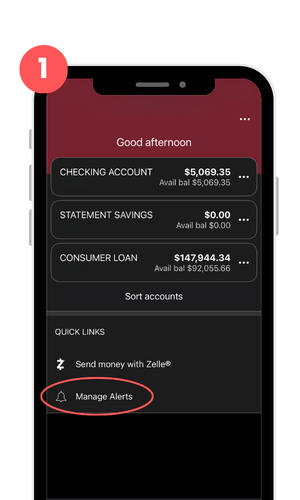
STEP 1Log in to your Mobile app using your User ID and password, or biometric login. Under “QUICK LINKS”, tap “Manage Alerts.” |
|
|
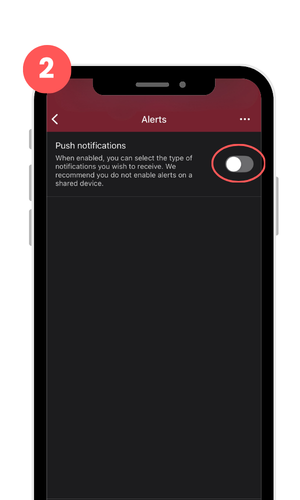
STEP 2Enable push notifications by toggling the switch. Depending on your mobile device, you may be asked to confirm that you would like to enable push notifications. Tap “Allow” to continue. |
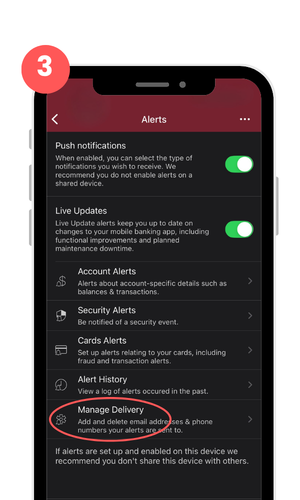 |
STEP 3Tap “Manage Delivery” to add new delivery methods to receive alerts. Follow the prompts to set up via email and/or message. |
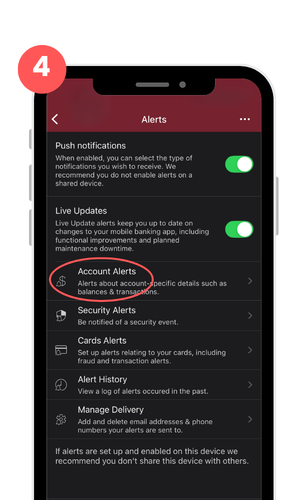 |
STEP 4Select “Account Alerts” |
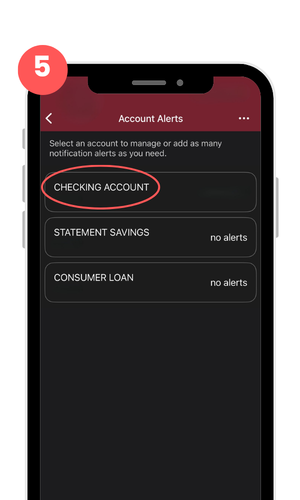 |
STEP 5Tap the account you wish to receive alerts for. |
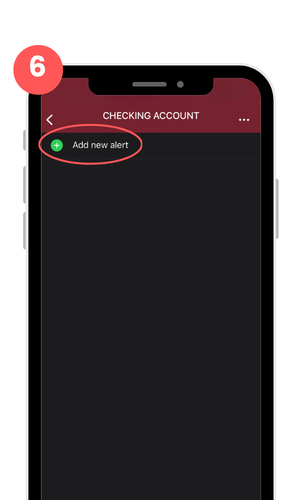 |
STEP 6Tap “Add New Alert.”There will be transaction, security, and balance alerts available to choose. |
|
|
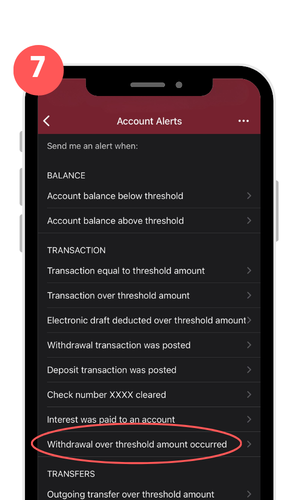
STEP 7SUGGESTION: Start with this TRANSACTION Alert. Select “Withdrawal over threshold amount occurred” |
|
|
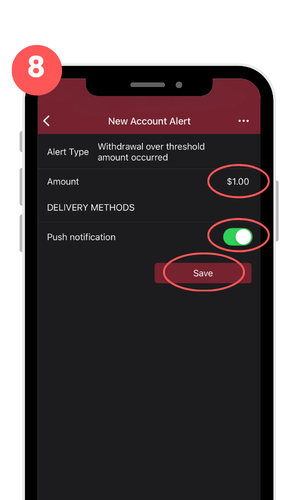
STEP 8Enter the dollar amount as $1.00 OR the threshold amount you choose. Enable push notifications by toggling the switch. Tap “Save.” |
Get started.
Set up account alerts through desktop Online Banking.
If you prefer a desktop computer for setting up your account alerts, follow these instructions:
- Log in to your online banking profile using your user ID and password
- On the home screen, under the Alerts section near the top of the page, click “Enroll”
- Click “Contact Options” to enroll your email and/or mobile phone to receive alerts
- Once your contact preferences are set, click “Alert Options”
- Click on the alert you wish to receive and set any necessary parameters, check off the desired contact option(s), then click “Save”
Quick Tip - Start with the “Withdrawal over threshold amount occurred” under “Transaction Alerts”:
- Enter the amount as $1
- Check off the desired contact options
- Tap “Save.”
Managing notification delivery preferences
After enabling push notifications, you can add new delivery methods.
Alerts via your mobile phone:
- After enabling push notifications, tap “Manage delivery.”
- Tap “Add new phone number” to start receiving alerts at a new phone number.
- Enter the phone number and tap “Continue.”
- You'll receive a verification code at the number you entered. Enter the code, then tap “Verify.”
- You will be prompted with a message like the one above. Tap “OK” to continue setting up your notification preferences.
Even more alert options to keep you notified.
How to enable Security Alerts
- After enabling push notifications, tap “Security Alerts.”
- Toggle on the security alerts you want to receive.
- The green toggle indicates that the security alert is enabled.
How to schedule Daily Balance Alerts
- After enabling push notifications, tap “Scheduled Alerts.”
- Choose the account for which you wish to receive alerts.
- To add an alert, tap “Add new alert.”
- Tap “Daily balance alert” to schedule notifications of your account balance.
- Select the day(s), time(s), and delivery methods for your account balance alerts. Tap “Save” to enable the alert.
How to schedule Recent Transaction Alerts
- After enabling push notifications, tap “Scheduled Alerts.”
- Choose the account for which you wish to receive alerts.
- To add an alert, tap “Add New Alert.”
- Tap “Recent transactions alert” to schedule notifications of your five most recent transactions.
- Select the day(s), time(s), and delivery methods for your recent transaction alerts. Tap “Save” to enable the alert.